
Having trouble with your controller? Support Page for Wireless HORIPAD Turbo for Nintendo Switch™ 2
-Table of Contents-
Select the topic below
Cannot move the analog sticks correctly / Controller Won't Connect to the Nintendo Switch 2
Turbo/Turbo Hold functions turn off on their own.
The LED blinks red. The button I assigned does not work. A different button responds.
Cannot Charge the Controller
Cannot charge/connect the controller. The gyro function is not working.
Cannot configure Turbo Function.
Can't tell which function I'm using. How to interpret the LED blinking colors.
When the issue isn't resolved through troubleshooting
Cannot move the analog sticks correctly / Controller Won't Connect to the Nintendo Switch 2
How to troubleshoot when the controller's analog sticks don't move correctly after connecting wirelessly to the Nintendo Switch 2

*The left and right analog sticks will not work properly if touched during the connection process.
If you touch the analog sticks during the centering calibration, please follow the below steps.
1. Press the Sync button or restart/wake your Nintendo Switch 2 system.
2. Press any button except for the left analog/left analog stick button/right analog/ right analog stick button.
If the issue is not resolved after trying the above, disconnect all controllers and reconnect them again using the below steps.
Step 1. Disonnect all controllers
From the Nintendo Switch 2 HOME menu go to System Settings→Controllers & Accessories→Disconnect Controllers.
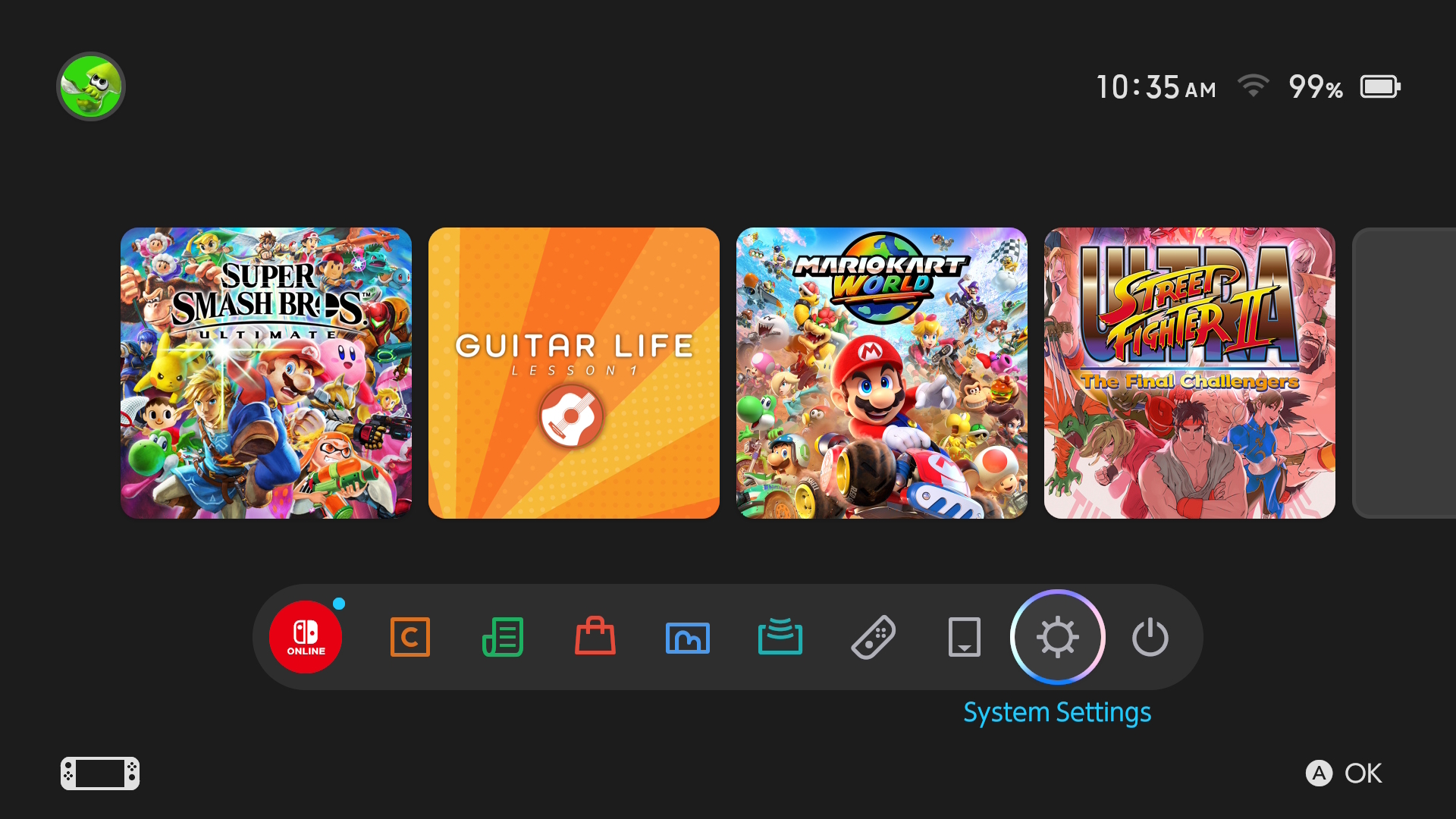
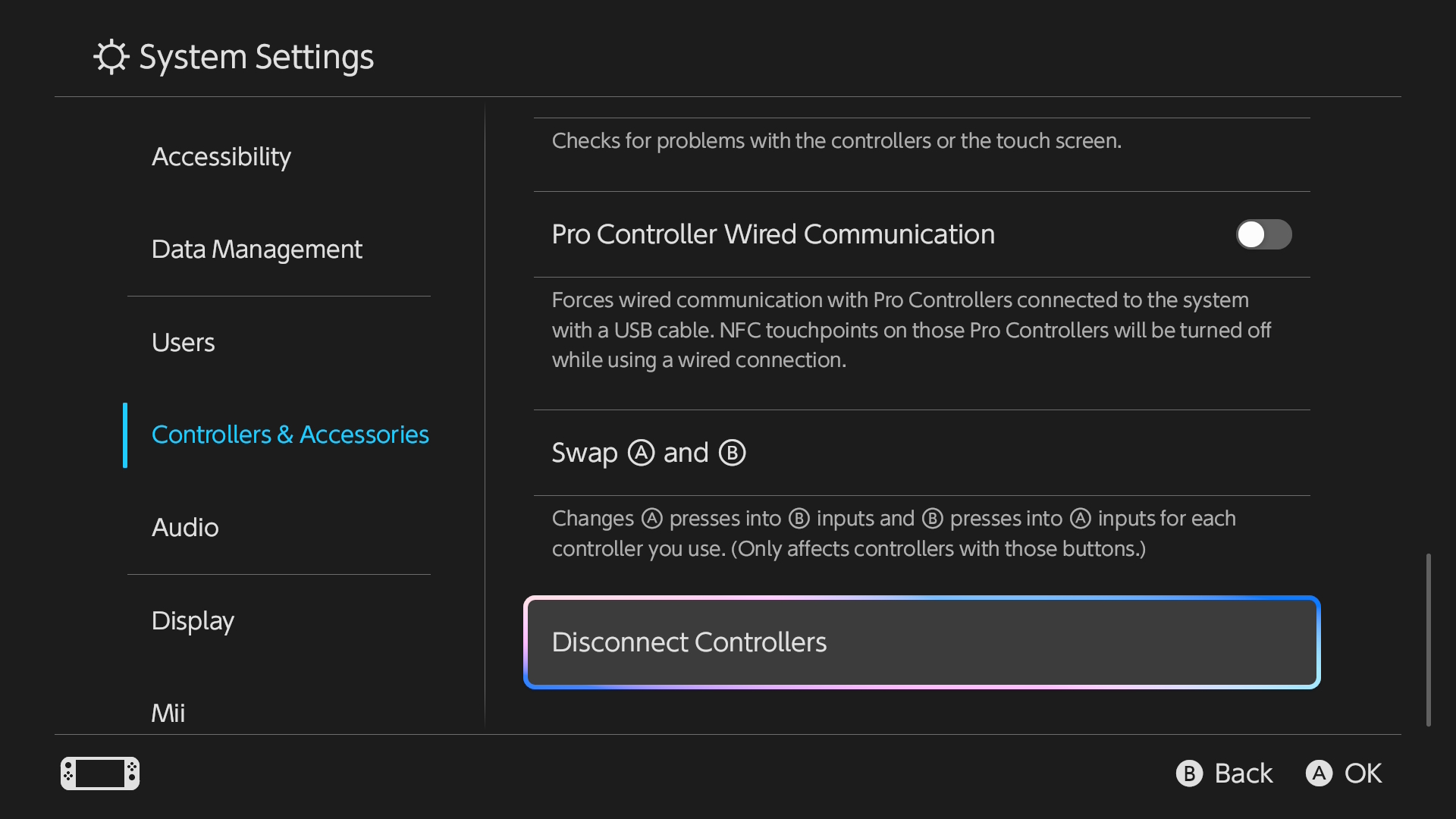
*All controllers will be disconnected. All controllers must be connected to the Nintendo Switch 2 again to resume use.
Step 2. Connect the controller
1. From the Nintendo Switch 2 HOME menu to go Controllers→Change Grip/Order.
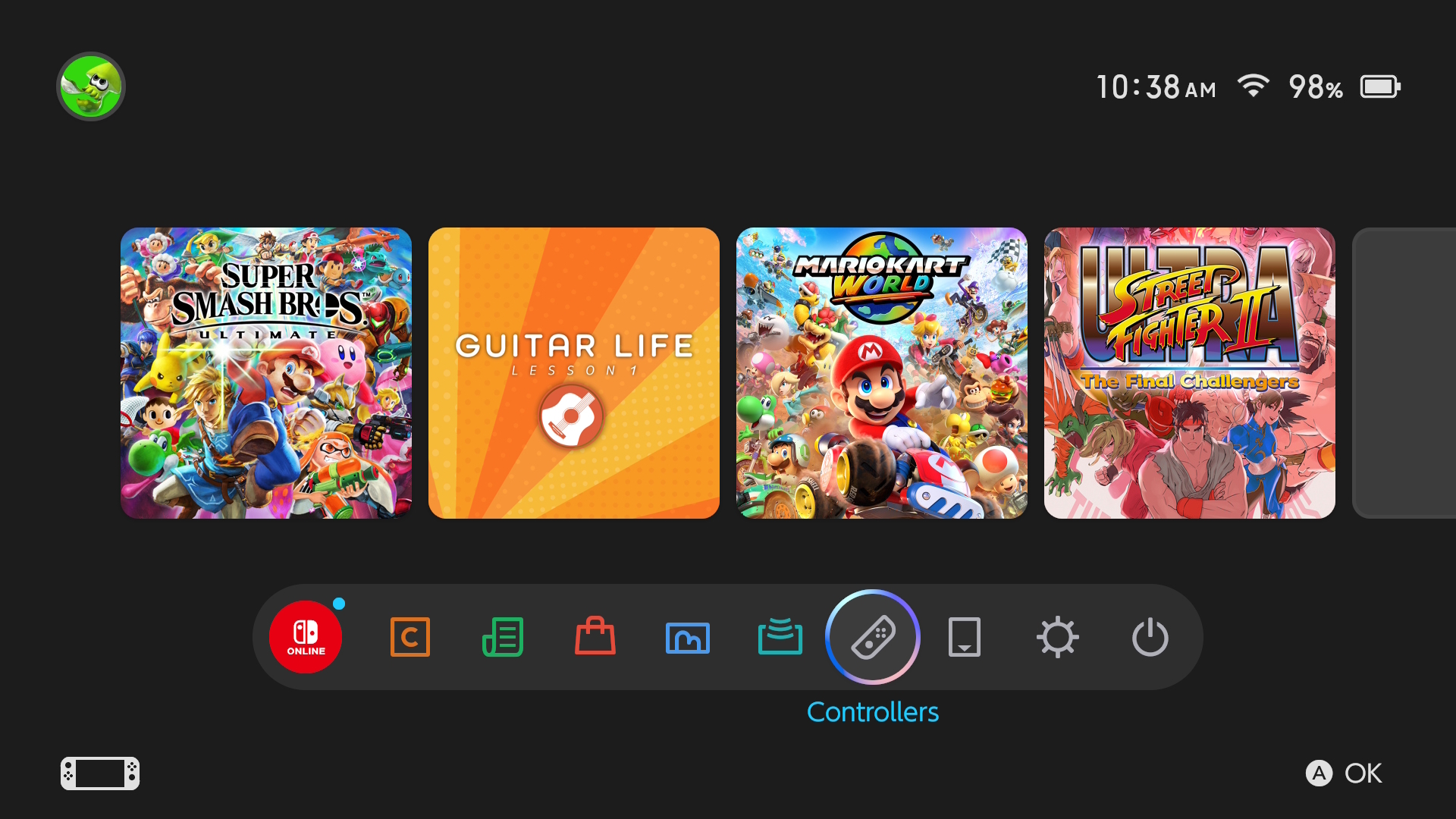
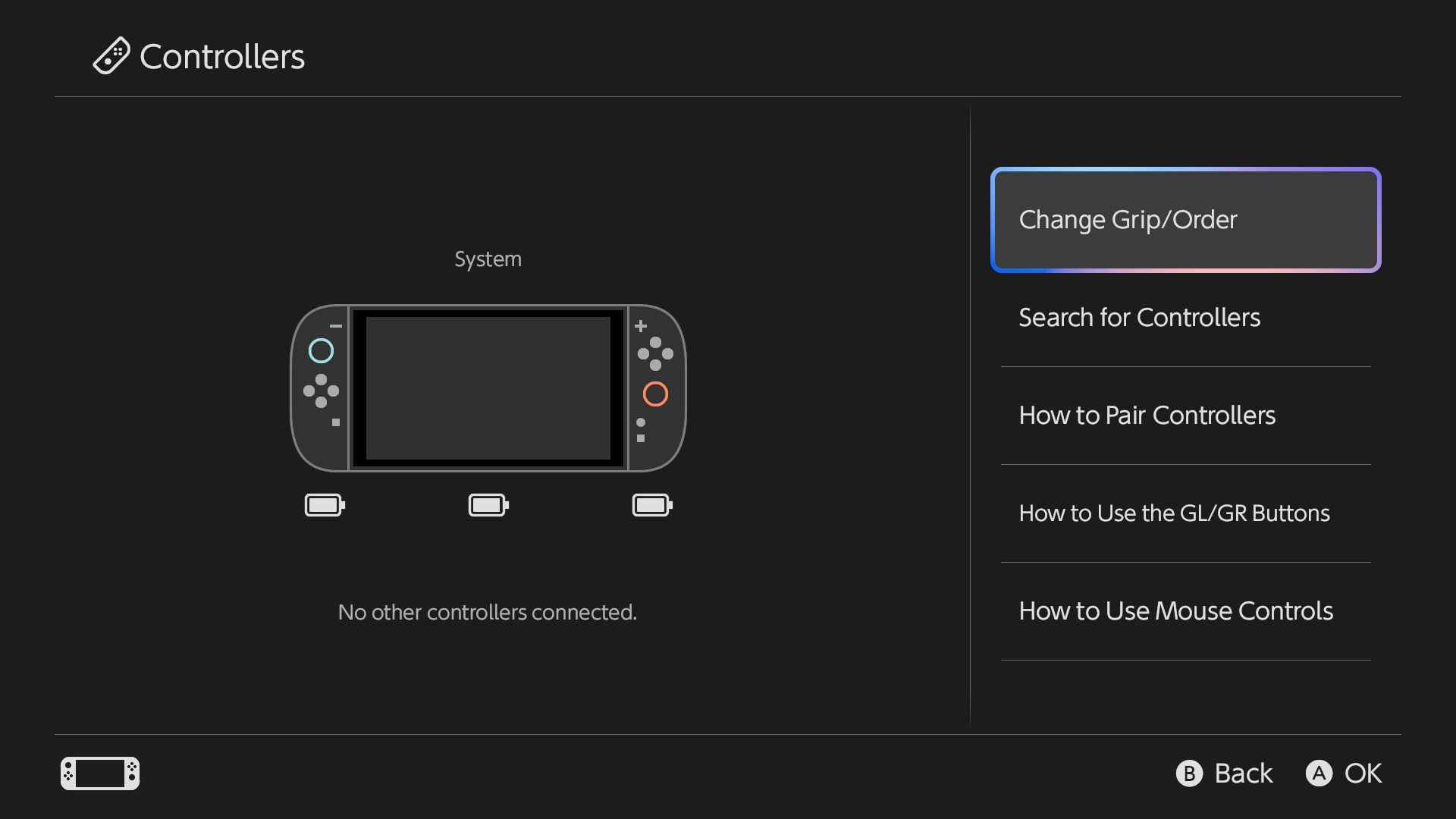
2. Press the Sync button until the Player LEDs light up.
*Image depicts Wireless HORIPAD Turbo for Nintendo Switch 2. For more information on connecting other controllers, check the product's manual. See below for the manual pages.
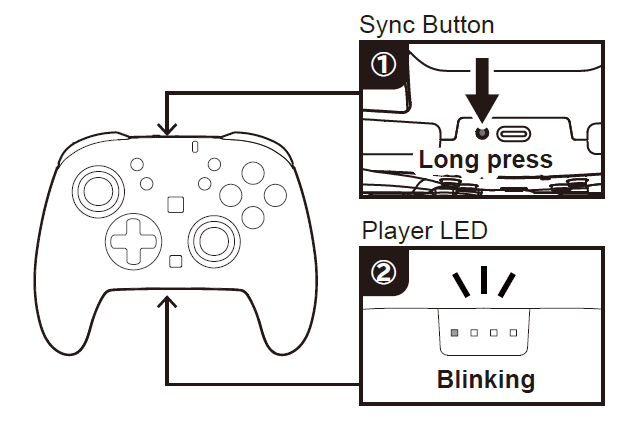
*After connecting the controller, press any button to start using the controller. (Except for left stick/left stick button/right stick/right stick button)
*Pressing the left or right stick while connecting the controller will cause the sticks to not function properly.
If you are unable to connect the controller
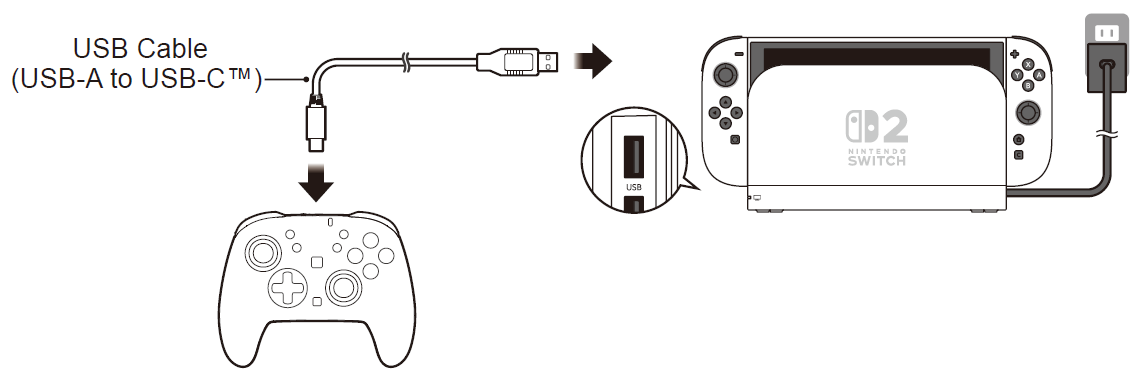
- While the Nintendo Switch 2 is in Sleep mode or turned off.

Turbo/Turbo Hold functions turn off on their own.
Turbo/Turbo Hold functions will turn off in the below scenarios.
- The controller runs out of battery charge
- Pressing the HOME button on the controller after turning on Turbo Hold
- The controller is disconnected from the Nintendo Switch 2
The LED blinks red. The button I assigned does not work. A different button responds
It is possible that Assign Mode is active.
While setting up Turbo Mode by pressing the HORI Button, if you long press the HORI Button it will change to Assign Mode.
Try the below to revert all Assign Mode settings.
How to revert Assign Mode
1. Press the HORI Button for 3 seconds (the Status LED will blink red slowly).
2. Press the HOME Button
3. When th LED stops blinking, all changes in Assign Mode are finished reverting.
Cannot Charge the Controller
If the controller is not charging when connected to the Nintendo Switch 2, please confirm the below.
Are you using the correct cable?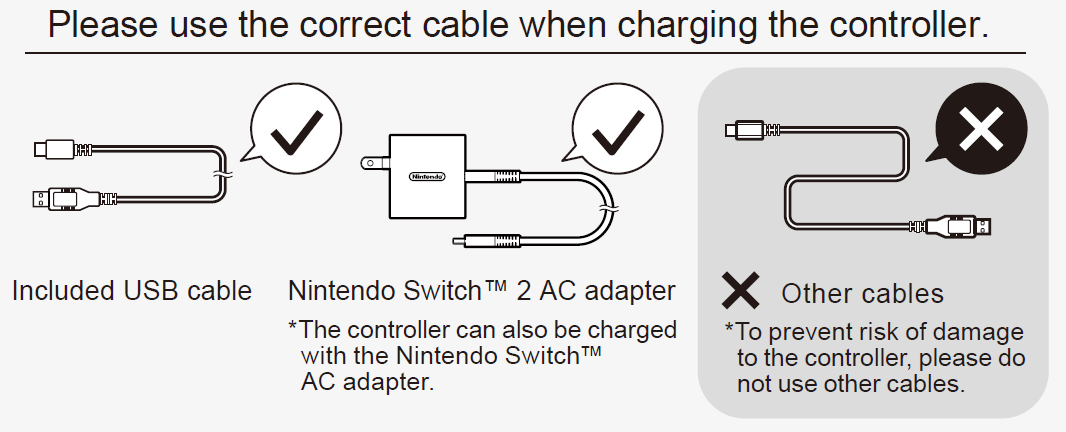
Is the cable inserted properly?
Connect the USB cable included with the Wireless HORIPAD Turbo to the Nintendo Switch 2 dock, or connect using the AC adapter included with the Nintendo Switch 2.
When connecting to the Nintendo Switch 2 dock to charge
1. Connect the Nintendo Switch 2 dock to a power outlet using the included AC adapter.
The controller can also be charged...
- even when the Nintendo Switch 2 is not on the Nintendo Switch 2 dock.
- even while the NIntendo Switch 2 is in Sleep mode or turned off.
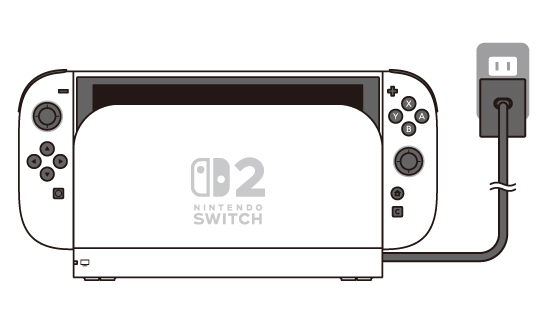
2. Connect the controller's USB cable to the Nintendo Switch 2 dock.
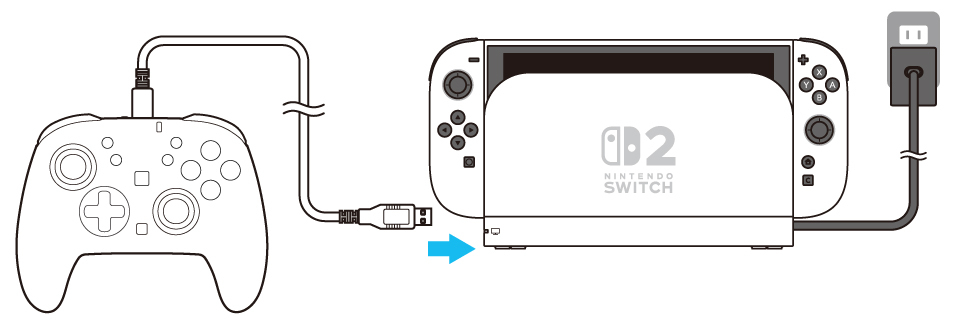
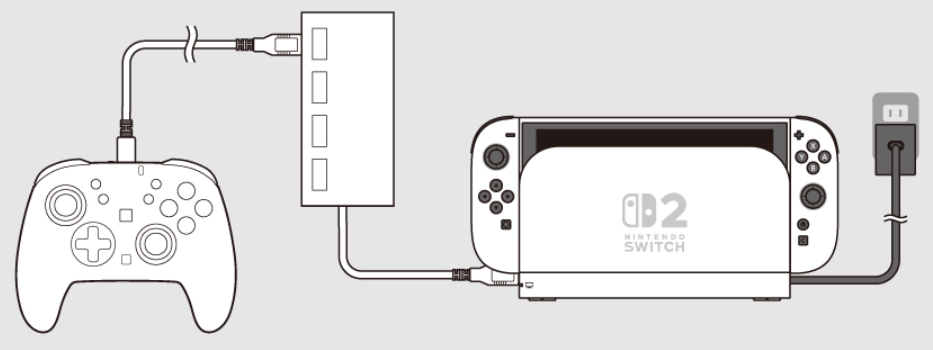
✕ The product may not function properly when using a commercially available USB hub.
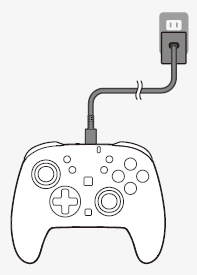
When connecting the cable to the controller to charge
Please connect the Nintendo Switch 2 AC adapter (included with the console) directly to the product.
How to confirm the controller is charging
When charging, the charging LED will light up.
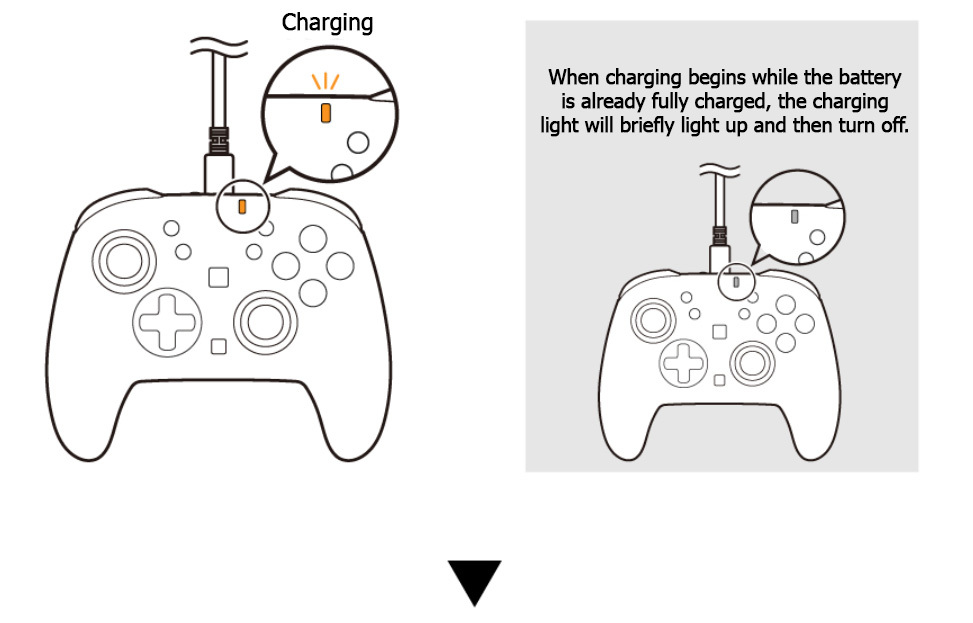
When the controller is fully charged, the LED wil stop lighting up.
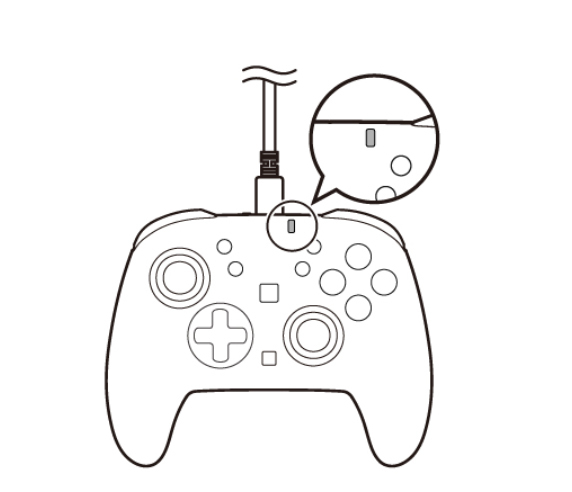
*You cannot confirm the charging state of the controller while in the Nintendo Switch 2 menu.
Cannot charge/connect the controller. The gyro function is not working.
When connecting the controller to the Nintendo Switch 2 via USB C (while charging), pressing the reset button on the back of the controller may fix the issue.
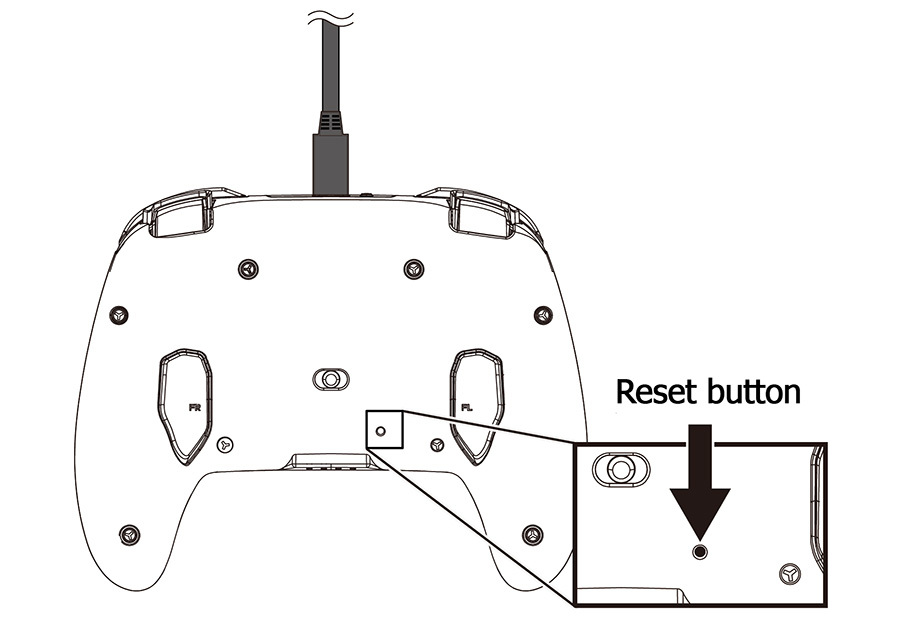
*Do not use a needle as this could scratch or damage the product. Use a paperclip or other thin object to press the Reset button.
Cannot configure Turbo Function.
Configure Turbo/Turbo Hold using the below steps.
Turbo Mode
1. Press the HORI Button
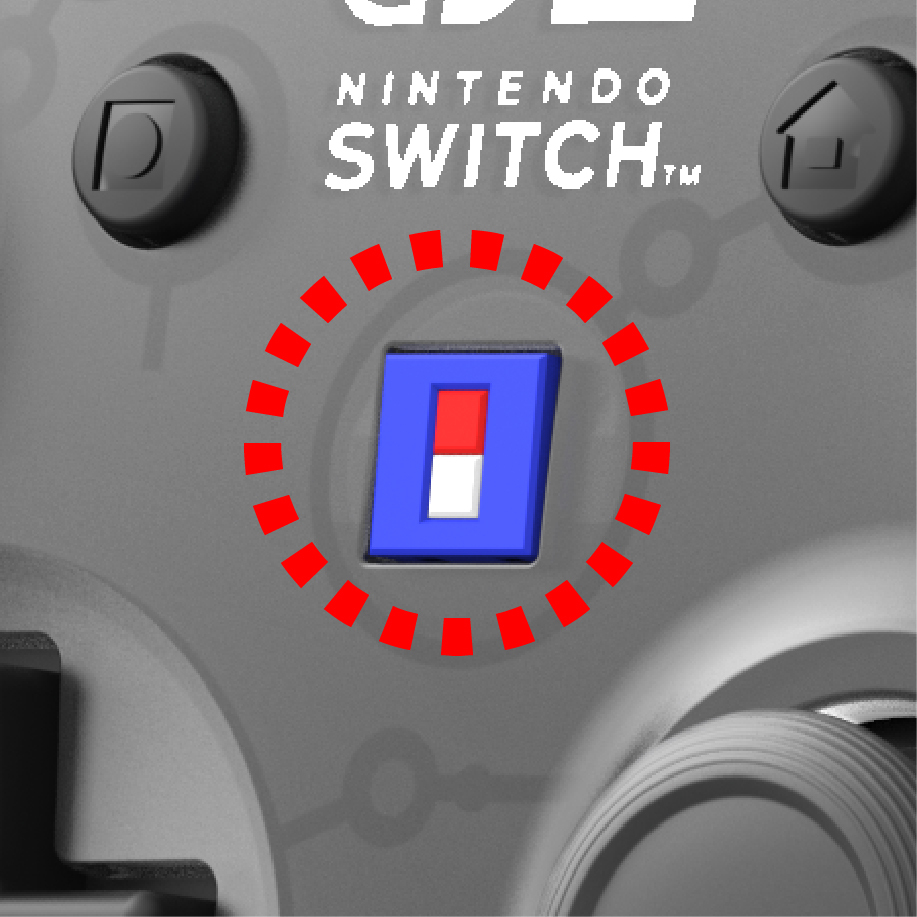
2. Press the button you want to assign to Turbo mode.
3. Turbo Mode configuration complete.
* Before completing step 2, note that if you long press the HORI Button for over 3 seconds, this will change to Assign Mode (the LED will blink red). If you mistakenly enter Assign Mode, wait until the red LED stops blinking and start again from step
Turbo Hold Mode
1. Press the HORI Button
2. Press the button that has Turbo assigned to it.
3. Turbo Hold Mode configuration complete.
* Before completing step 2, note that if you long press the HORI Button for over 3 seconds, this will change to Assign Mode (the LED will blink red). If you mistakenly enter Assign Mode, wait until the red LED stops blinking and start again from step 1.
When the issue isn't resolved through troubleshooting
Please contact us through our customer support page if the issue persists.