
CLICK HERE TO DOWNLOAD HORI DEVICE MANAGER
HORI Device Manager App
Please note that the Wireless HORIPAD for Steam requires the HORI Device Manager App to access the following functions:
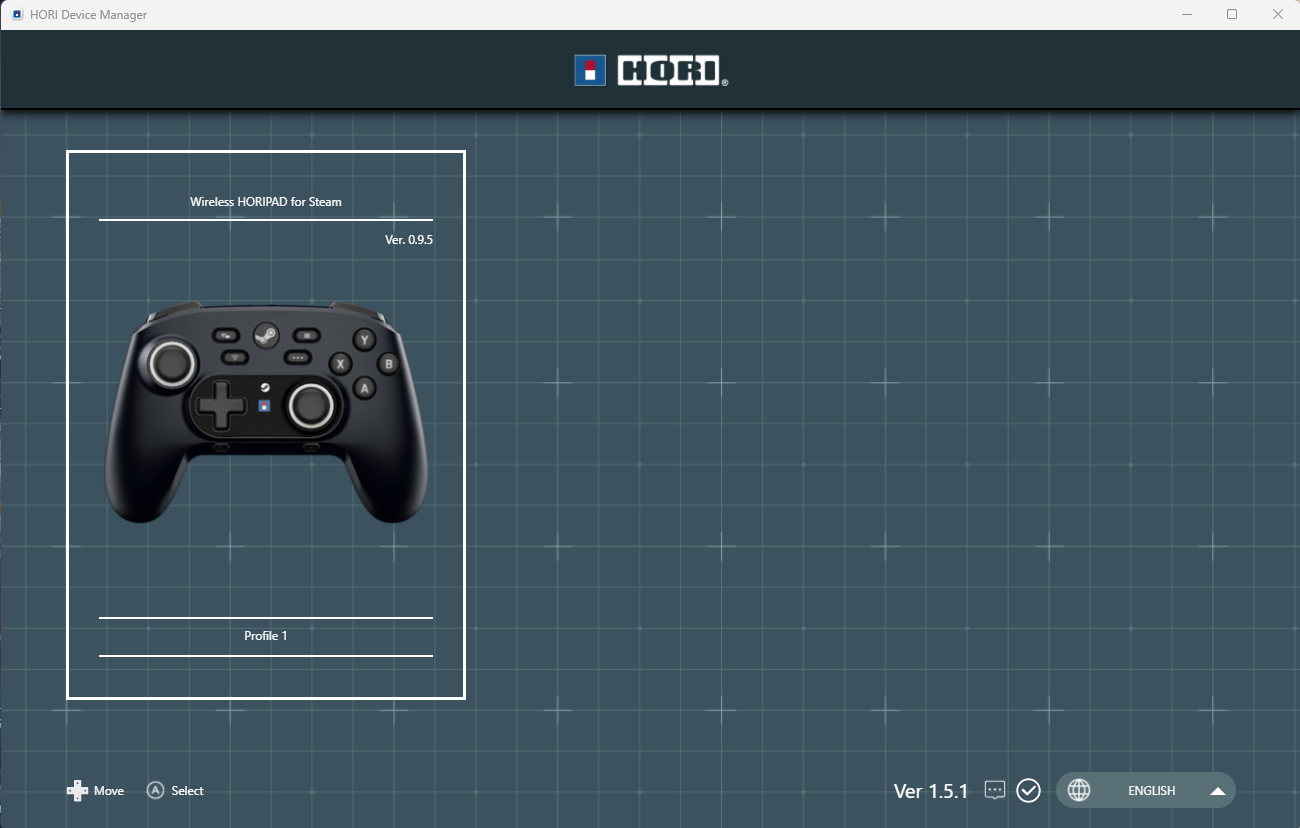
- Profile Selection – Switch between and edit profiles
- Button Mapping – Assign functions to individual buttons and test button inputs
- Analog Stick Settings – Adjust the sensitivity of the LEFT and RIGHT analog sticks
- Turbo Settings – Assign turbo function to button(s)
- Firmware Update - Update device's firmware
Charging Issue
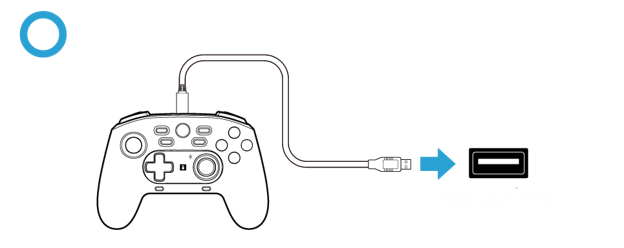
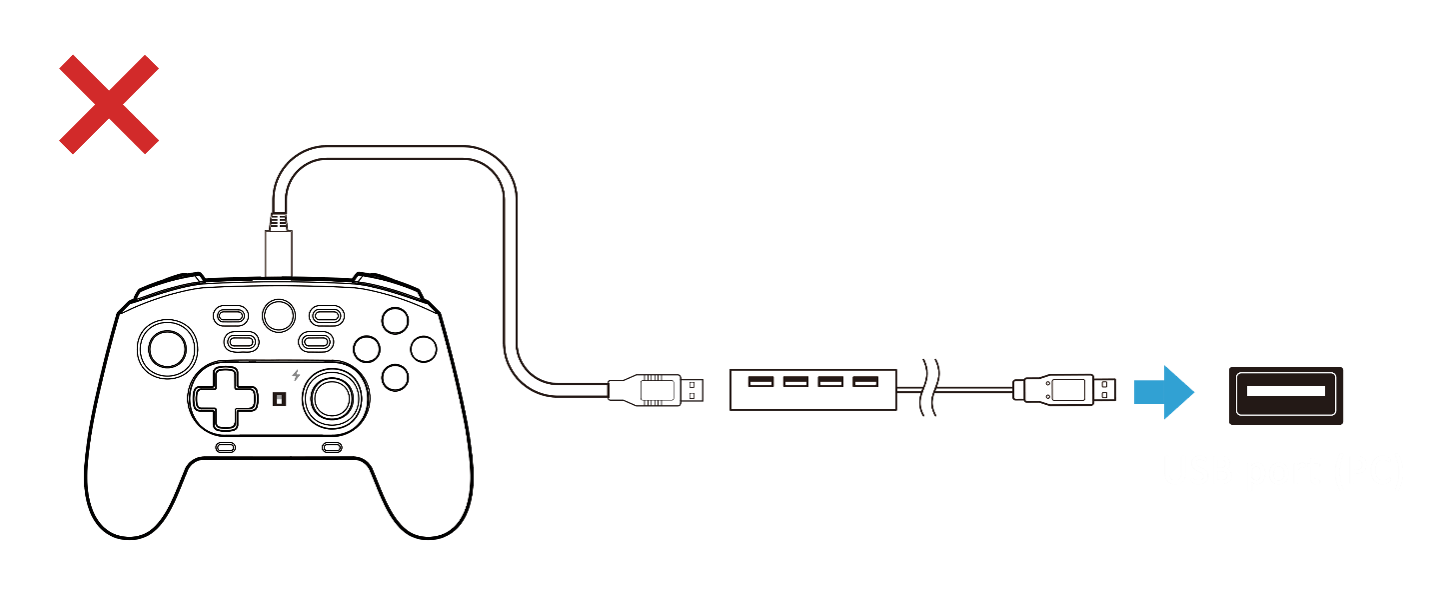
Please make sure that you are not using a USB hub.
If a USB hub is used between the USB port and the cable, it may prevent the controller from charging.
1. Disonnect and remove any USB hub / extension that's connected between HORIPAD and PC/power source. RED "charging" icon will turn on on the device to indicate charging.
2. Reconnect HORIPAD directly to PC/power source with supplied USB cable. When the device is fully charged, RED charging icon will turn off.
GYRO is not working / too sensitive
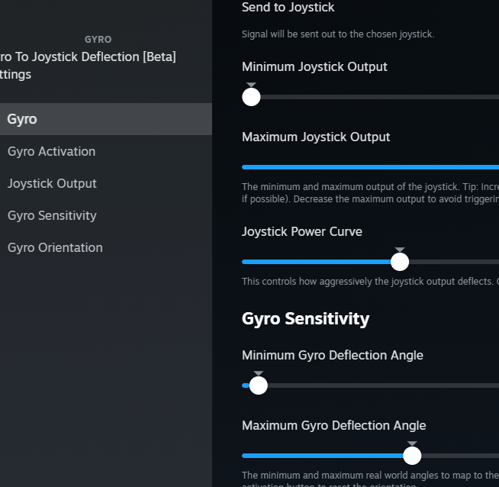
Adjust the gyro settings/sensitivity on the Steam
- While connecting your controller to the PC, please open the controller settings for the game you want to play.

- On Gyro Behavior, please click on the settings icon.
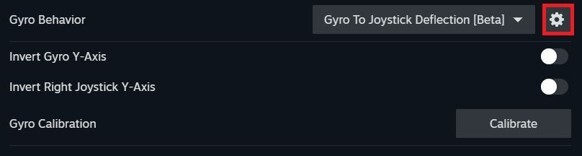
- Please adjust the "Gyro Sensitivity" parameter that allows GYRO to function normally and adjusted to your preference.
Hard Resetting Your Controller
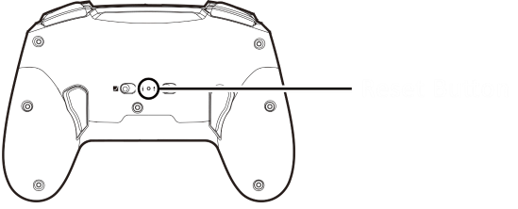
1. Reset the product by pressing the reset button on the back of the product with a thin object such as paper clips. Do not use a pointed metal needle as it may cause scratches or damage.
2. Connect the charging cable again.