
Troubleshooting for Racing Wheel APEX
Model: SPF-004U
Please try the following troubleshooting steps:
- Make sure your console system software is updated to the latest version.
-
Connect the Racing Wheel APEX to a Windows PC and check for any available firmware updates.
If you have not installed the HORI Device Manager, please download it from the following link:
-
Follow the instructions in the HORI Device Manager to update the racing wheel firmware.
IMPORTANT: DO NOT DISCONNECT THE RACING WHEEL WHILE THE FIRMWARE IS UPDATING.
- Reset all racing wheel settings through the HORI Device Manager.
- Restart your console.
- Disconnect the racing wheel from the console and use a DualSense® Wireless Controller to proceed to the console's main screen.
- Reconnect the Racing Wheel APEX USB connector to the console, then press the PS button to sign in to the desired user profile.
-
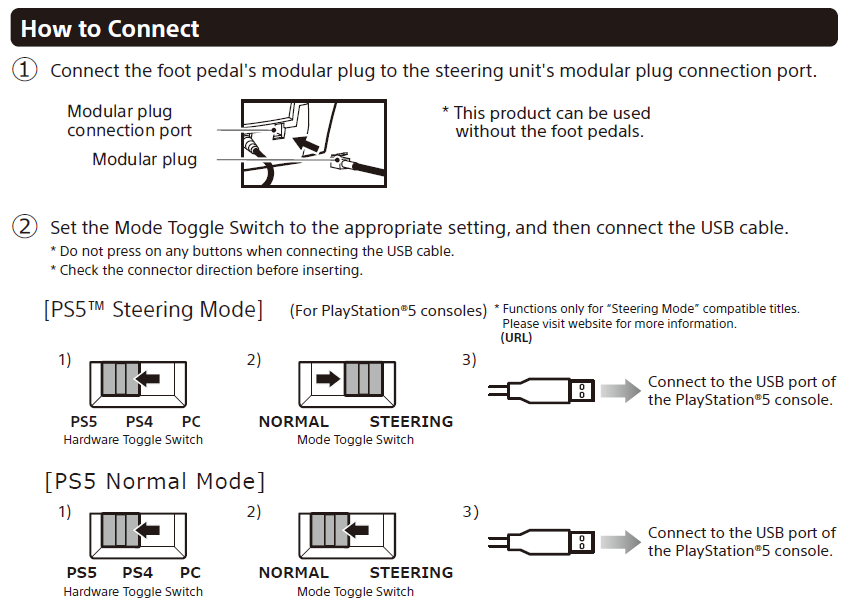
Make sure the toggle switches located above the center of the steering wheel are set to the appropriate positions.
For most PS5® games, use:
PS5 + NORMAL
Factory Reset
You may also try restoring the racing wheel's button assignments to the factory default settings:
- Press and hold the ASSIGN button for approximately 3 seconds. The Program LED will illuminate.
- Press the PS button.
If the reset is completed correctly, the Program LED should turn off.
Note: If the Program LED remains illuminated, this may indicate that one or more buttons have been reassigned.
For instructions on assigning or reassigning buttons, please refer to the product instruction manual:
https://hori.jp/manual/p5/spf-004/
Troubleshooting for Wireless Racing Wheel APEX
Model: SPF-022U
Important: The Wireless Racing Wheel APEX operates wirelessly using the supplied USB receiver. The racing wheel does not operate as a wired controller when connected by USB cable.
1. The Product Is Not Working
Please try the following:
- If the product does not respond when buttons are pressed, the battery may be low. Fully charge the racing wheel using the included USB cable and an appropriate power source.
- If the buttons do not respond immediately after connecting the racing wheel, press the PS button and make sure the racing wheel is assigned as the main controller for your user profile.
2. The Product Will Not Charge, Does Not Respond After Charging, or Registers Inputs on Its Own
Please try the following steps:
- Locate the reset button on the back of the racing wheel.
-
Using a thin, blunt object such as a paper clip, gently press the reset button.
Do not use a sharp needle or similar object, as it may scratch or damage the product.
- Reconnect the racing wheel and test its operation again.
3. Cannot Connect a DualSense® Wireless Controller or DUALSHOCK®4 Wireless Controller
Power off the console completely, then turn it back on and try again.
Charging the Wireless Racing Wheel APEX
Charge the product by connecting it to a USB-A port on a PS5® console, PS4™ console, or PC while the device is powered on or, where supported, in Rest Mode.
Wireless Racing Wheel APEX Receiver Pairing
Model: SPF-022U
The steering unit and USB receiver are paired at the factory. If they become unpaired, follow the steps below.
- Make sure the racing wheel is fully charged.
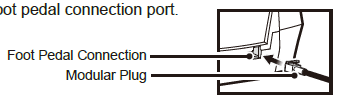
- Connect the foot pedal modular plug to the foot pedal connection port on the steering unit.
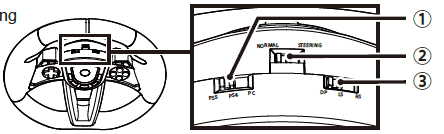
1. Set the racing wheel's platform toggle switch to the appropriate position for the device you are using:
- ①PS5 / PS4 / PC Select connected console
- ②NORMAL (STEERING is not used for most games)
- ③DP (D Pad is most common, Left Stick / Right Stick can be selected for certain games)
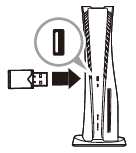
2. Connect the supplied wireless receiver to the PS5® console, PS4™ console, or PC
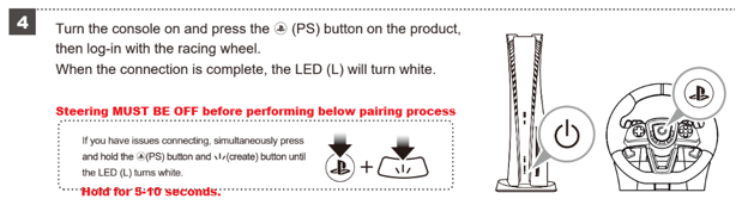
3. Make sure the steering wheel is completely OFF.
No LED should be illuminated or flashing before beginning the pairing process.
4. Press and hold the PS button and Create button simultaneously.
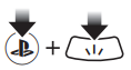
5. Continue holding both buttons until the APEX LED illuminates white.
6. When the white LED remains illuminated, pairing is complete.
7. After pairing, perform the steering wheel calibration procedure according to the product instructions.
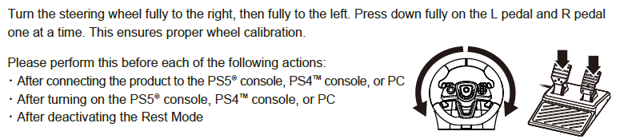
Important Pairing Notes
- The steering wheel must be OFF before beginning the pairing procedure.
- If the white LED is already illuminated or flashing, wait until it turns completely off before pressing the PS + Create buttons.
- If necessary, hold the PS + Create buttons for approximately 5–10 seconds until the white LED illuminates.
Caution
- Check the orientation of the wireless receiver carefully before inserting it into the USB port.
- The steering unit and receiver are paired together at the factory.
- If multiple Wireless Racing Wheel APEX units are being used, use the receiver supplied with its corresponding steering unit.
- Do not use the product through a USB hub or USB extension cable.
- Do not connect or disconnect the wireless receiver or modular pedal cable during gameplay.
- Do not press buttons or move the steering wheel or pedals while:
- Connecting the product to a PS5® console, PS4™ console, or PC
- Turning on the PS5® console, PS4™ console, or PC
- Waking the console from Rest Mode