HORI Device Manager
Before beginning troubleshooting, please make sure your Fighting Stick α is running the latest firmware.
If you have not installed the HORI Device Manager on your Windows PC, please download it from the following link:
DOWNLOAD HORI Device Manager
Follow the instructions in the HORI Device Manager to check for and install any available firmware updates.
IMPORTANT: DO NOT DISCONNECT THE FIGHTING STICK WHILE THE FIRMWARE IS UPDATING.
General Troubleshooting
Please try the following steps:
- Make sure your PlayStation console system software is updated to the latest version.
- Connect the Fighting Stick α to a Windows PC and check for any available firmware updates using the HORI Device Manager.
- Reset all Fighting Stick α settings through the HORI Device Manager.
- Safely disconnect the Fighting Stick α from the PC.
- Restart your PlayStation console.
- After the console has restarted, use a standard DualShock/DualSense controller to proceed to the main screen.
- Connect the Fighting Stick α USB connector directly to the console.
- Press the PS button on the Fighting Stick α and sign in to the desired user profile.
- Make sure the mode switch located at the top of the Fighting Stick α is set correctly.
Lever or Button Is Not Responding
If the joystick lever or one or more buttons are not responding correctly, please check the following:
- Make sure the joystick lever and surrounding area are clean and free of debris.
- Open the Fighting Stick α case and check the wiring connections to the lever and buttons.
- Make sure all connectors are fully seated and that no wires have become loose or disconnected.
- Check underneath and around the joystick lever switches and restrictor gate for any objects, loose wires, or cables that may interfere with the movement of the lever.
- If aftermarket buttons or joystick levers have been installed, please note that some replacement parts may use different connectors, pin layouts, or wiring configurations.
HORI cannot guarantee compatibility with all aftermarket components. Modification or additional wiring may be required. Please contact the component manufacturer or retailer for installation and compatibility information.
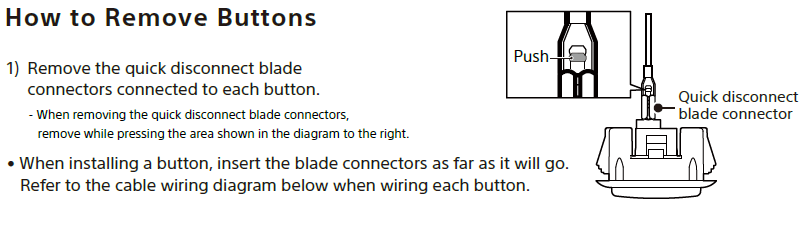
Unable to Disconnect Wires From the Buttons
IMPORTANT
DO NOT pull or yank the wire directly from the button terminal.
The quick-disconnect blade connector has a built-in locking mechanism. Pulling the wire without releasing the lock may damage the connector, wire, button terminal, or internal wiring.
To disconnect the connector:
- Locate the locking tab on the quick-disconnect blade connector.
- Press and hold the locking tab inward.
- While continuing to hold the locking tab, carefully pull the connector straight off the button terminal.
- Hold the connector itself when removing it. Do not pull on the wire.
When reconnecting a button, push the blade connector onto the button terminal as far as it will go.
Refer to the diagram below for the location of the connector locking mechanism.